Customers
The Customers feature in Syteville allows you to view a list of customers who have created accounts on your website. With this feature, you can review customer orders and add loyalty reward points to their accounts (if the loyalty reward feature is enabled). Customer management is located under the Customers tab in the Left Sidebar. This guide explains how to view customer orders, add reward points, and export customer data.
Navigate to Customers: In the Left Sidebar, click Customers to access the customer index page, which displays all registered customers.
Viewing Customer Orders
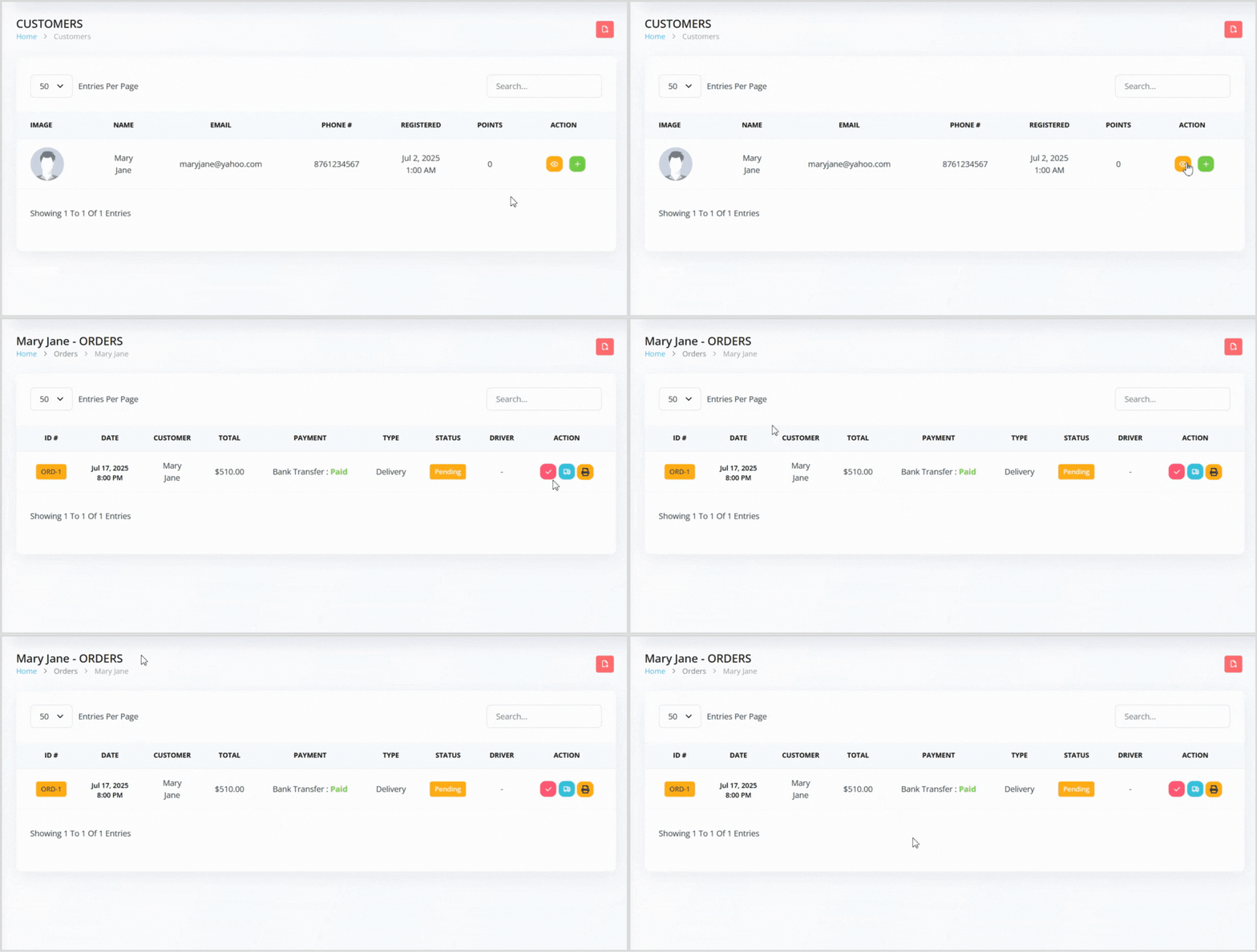
On the Customer's index page, locate the customer whose orders you want to view.
Click the orange eye icon button to the right to access a list of all orders placed by that customer.
Adding Reward Points
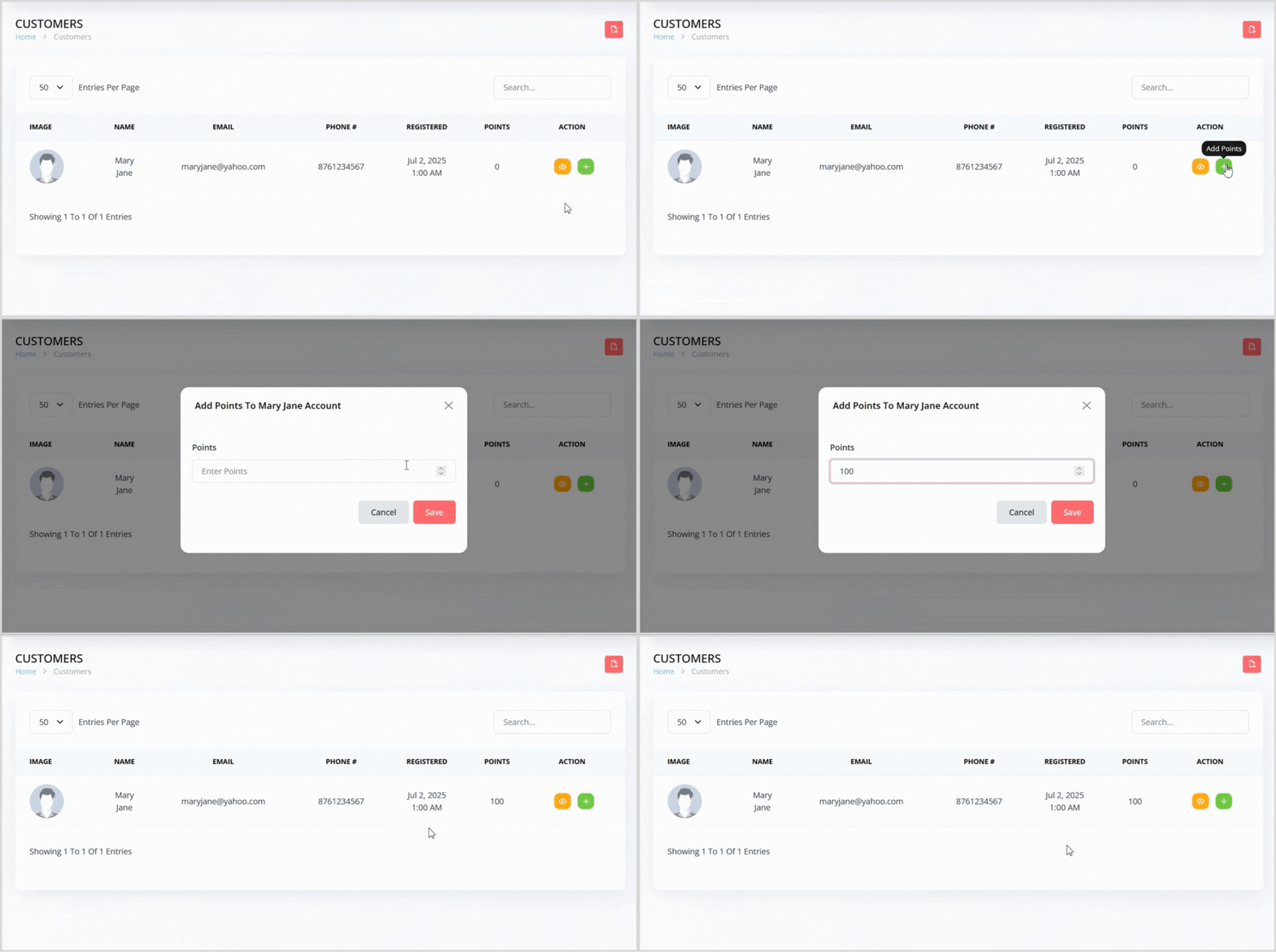
Enable Loyalty Reward Feature: Before adding points, ensure the loyalty reward feature is activated in your website’s Settings (found under the Settings tab in the Left Sidebar). This must be enabled to unlock the option to add reward points.
On the Customer's index page, find the customer you want to add points to.
Click the green plus icon button to the right to open a pop-up for adding reward points.
Enter the number of reward points to add to the customer’s account.
Click the Save button to apply the points to the customer’s account.
Exporting Customers

On the Customer's index page, locate the file icon on the right side of the page.
Click the file icon to export the entire customer list in an XLSX file format for your records or analysis.
Enhance Customer Engagement
The Customers feature in Syteville helps you stay connected with your audience by tracking their orders and rewarding loyal customers with points. By leveraging these tools, you can build stronger relationships and encourage repeat purchases.