Delivery Drivers
Syteville includes a pre-created Delivery Driver role with three permissions: switching websites (if you have multiple websites), managing orders, and updating orders.
Creating a Delivery Driver
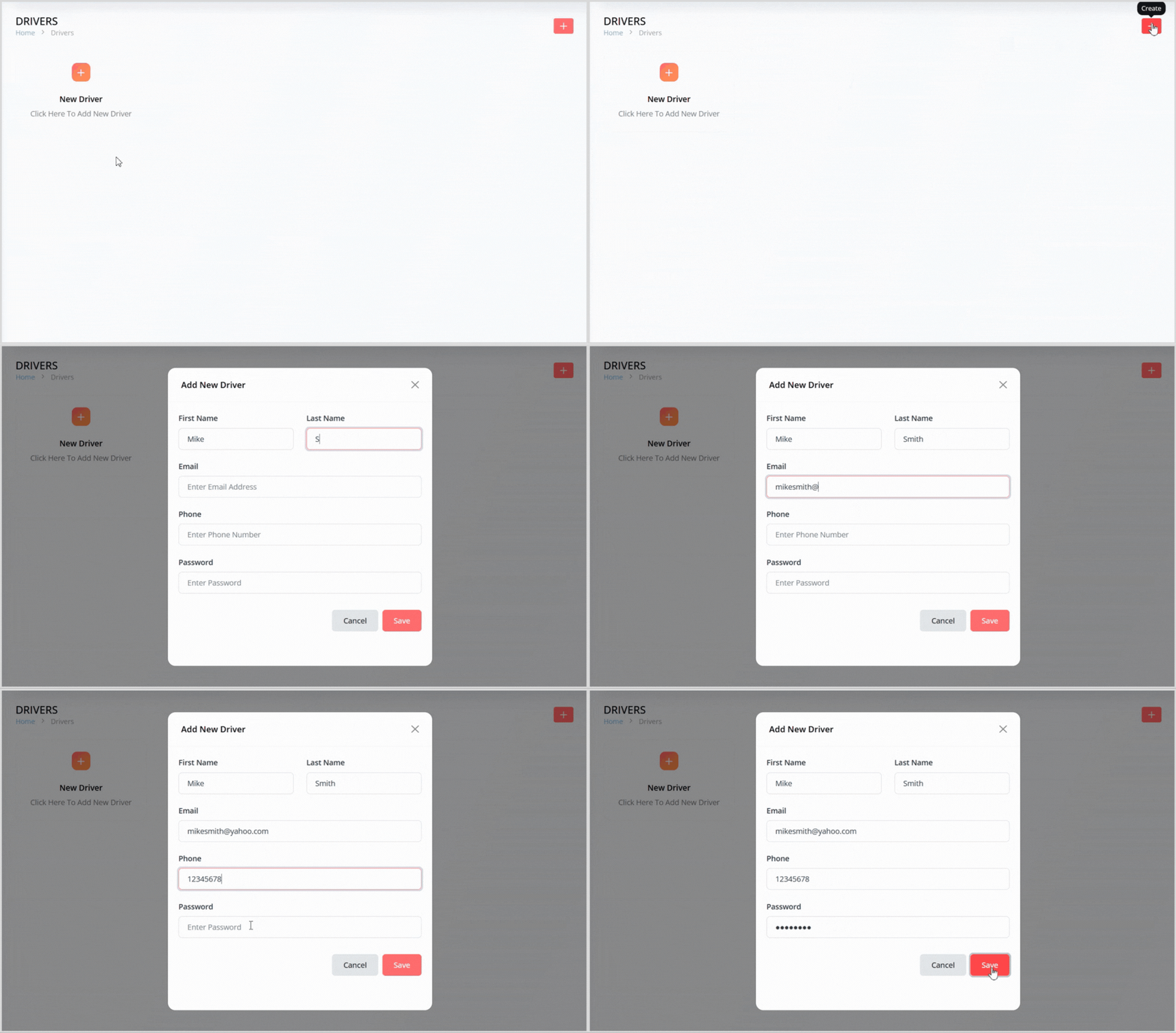
On the Driver page, click any one of the plus + icon button to open a pop-up for creating a new delivery driver.
Enter the following details:
First Name: The driver’s first name.
Last Name: The driver’s last name.
Email: The driver’s email address.
Phone: The driver’s phone number.
Password: Create a password for the driver.
Click the Save button to create the delivery driver. They will now appear in the delivery driver grid list.
Viewing Delivery Driver Orders
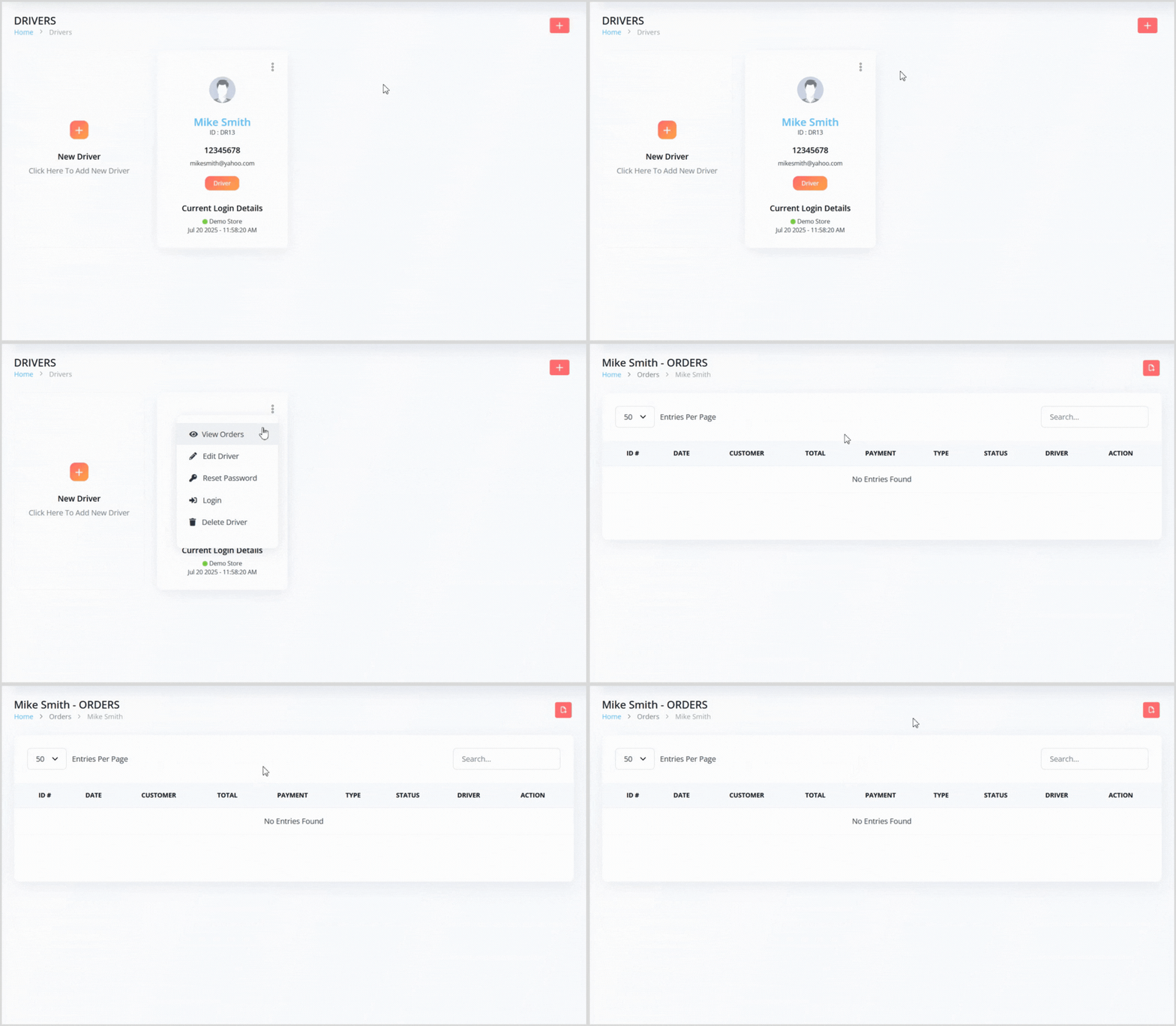
In the delivery driver grid list, find the driver whose orders you want to view.
Click the 3-dot icon and select View Orders to access a list of all orders assigned to that driver.
Driver with Order Data

Editing a Delivery Driver
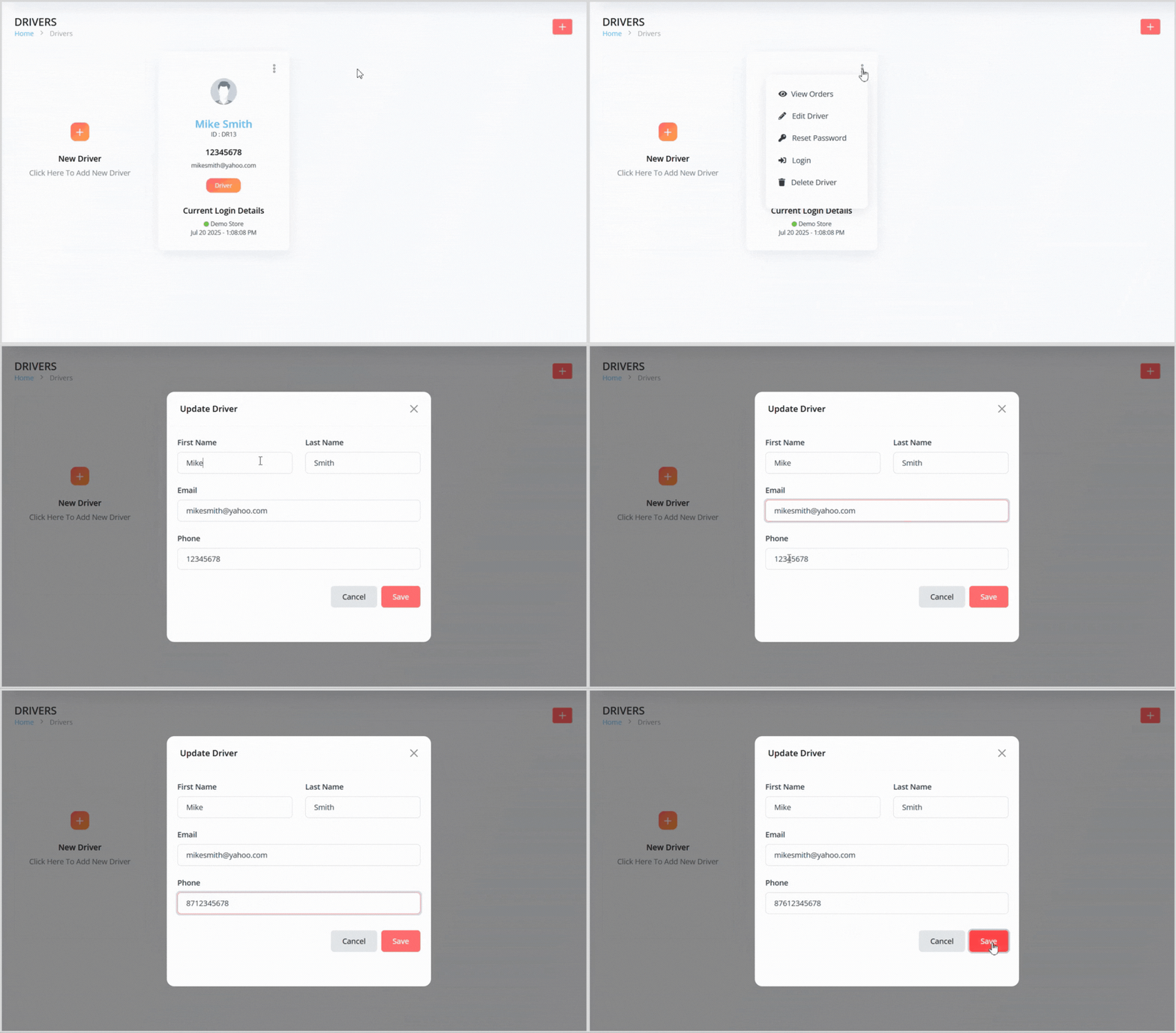
In the delivery driver grid list, find the driver you want to edit.
Click the 3-dot icon and select Edit to open a pop-up with the driver’s details pre-populated.
Update the details as needed (e.g., name, email, or phone).
Click the Save button to apply your changes.
Resetting a Delivery Driver Password
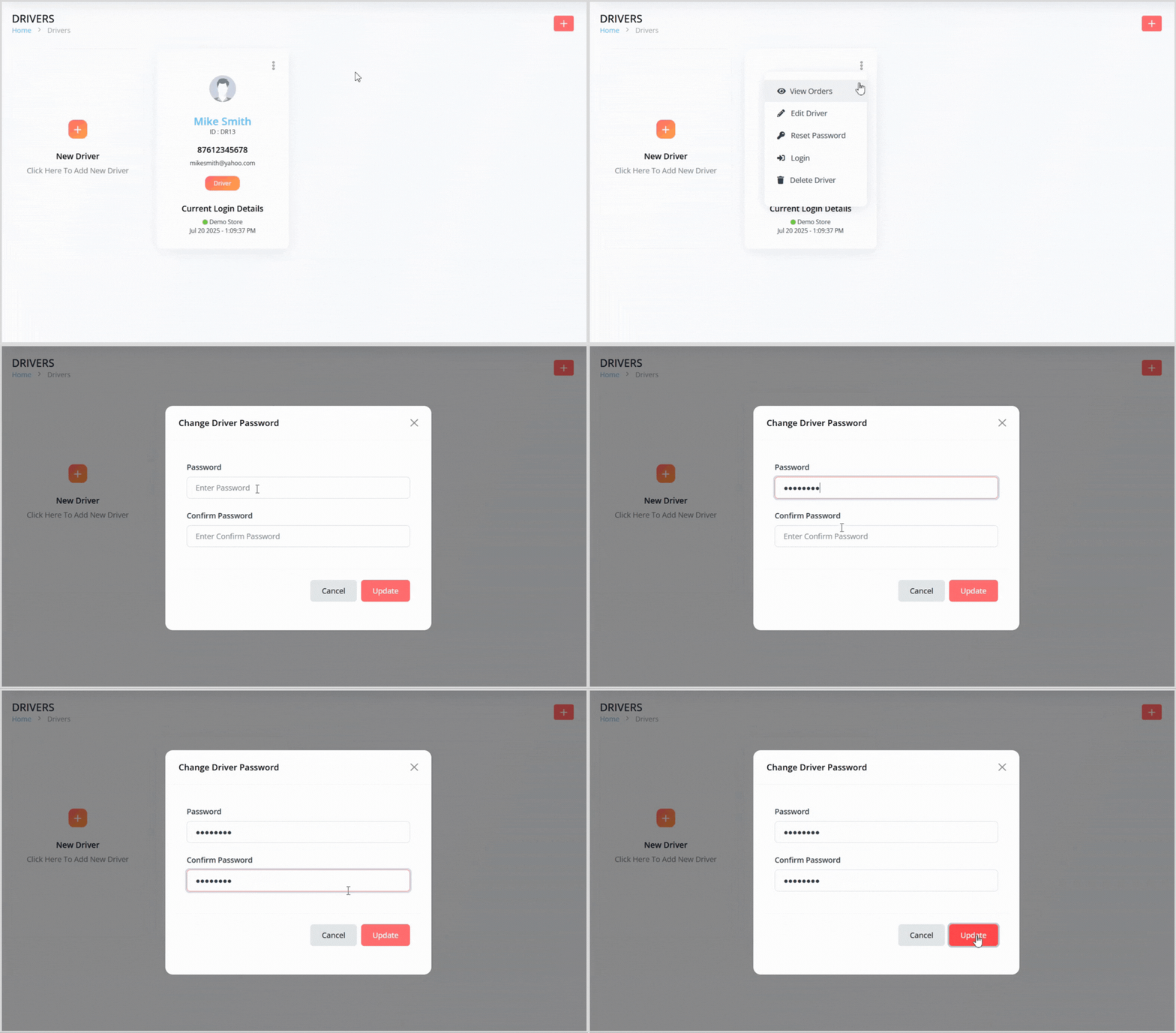
In the delivery driver grid list, find the driver whose password you want to reset.
Click the 3-dot icon and select Reset Password to open a pop-up.
Enter the following:
Password: Create a temporary password for the driver.
Confirm Password: Re-enter the password to confirm.
Click the Update button to reset the password, allowing the driver to log in with the new credentials.
Logging in as a Driver (Admin Secret Login)
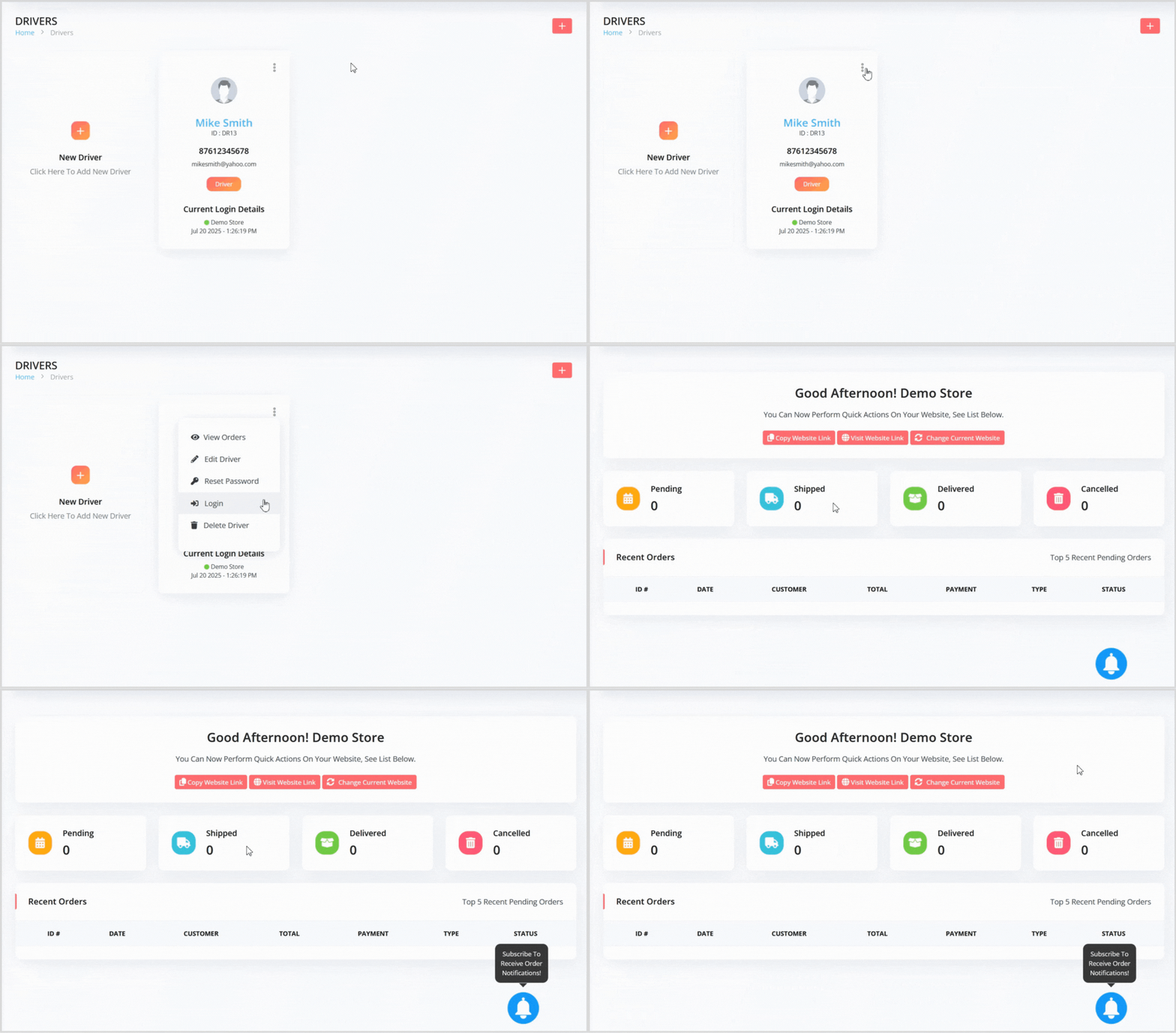
In the delivery driver grid list, find the driver account you want to access.
Click the 3-dot icon and select Login to access the driver’s account without needing their password.
Deleting a Delivery Driver
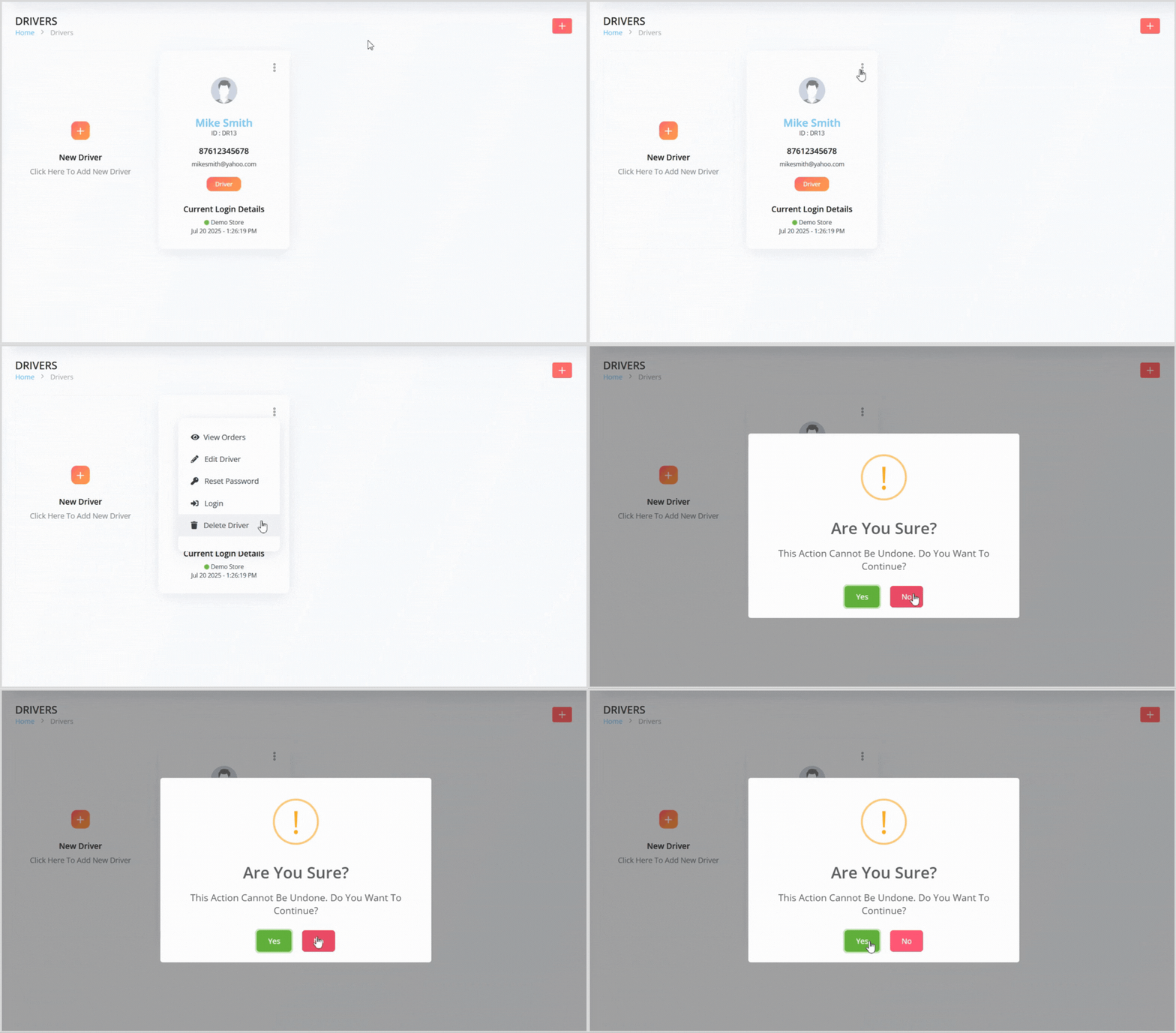
In the delivery driver grid list, find the driver you want to delete.
Click the 3-dot icon and select Delete.
A confirmation pop-up will appear, warning that the action cannot be undone. Click the green Yes button to confirm deletion.