Roles
In the Left Sidebar, click Staff, then select Roles to access the role management page.
Creating a Role
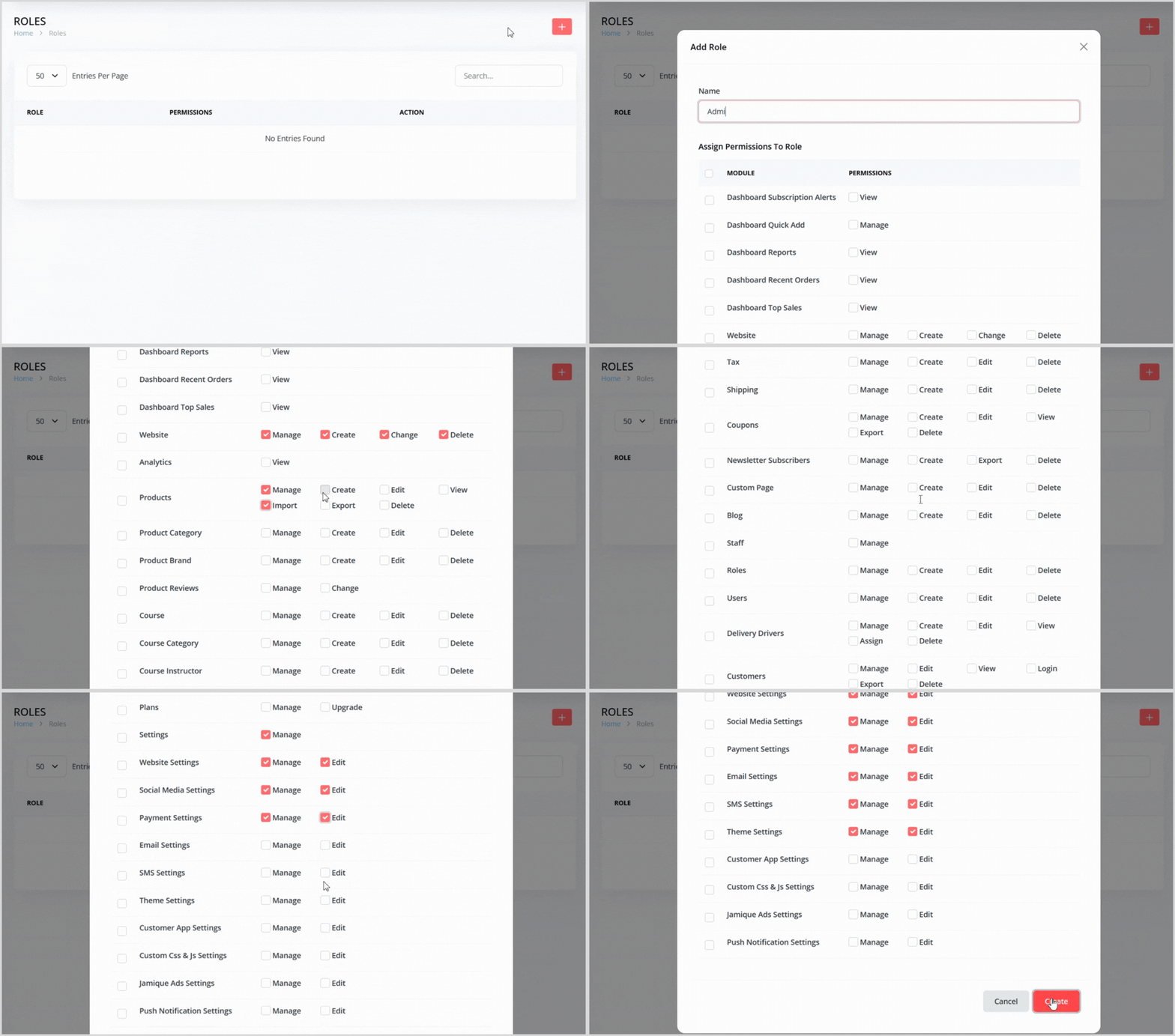
On the Roles page, click the plus + icon button to open a pop-up for creating a new role.
Enter the following details:
Role Name: Provide a name for the role (e.g., "Store Manager").
Permissions: Assign relevant permissions to the role (e.g., manage products, view orders, etc.).
Click the Create button to save the role. It will now appear in the roles list.
Editing a Role
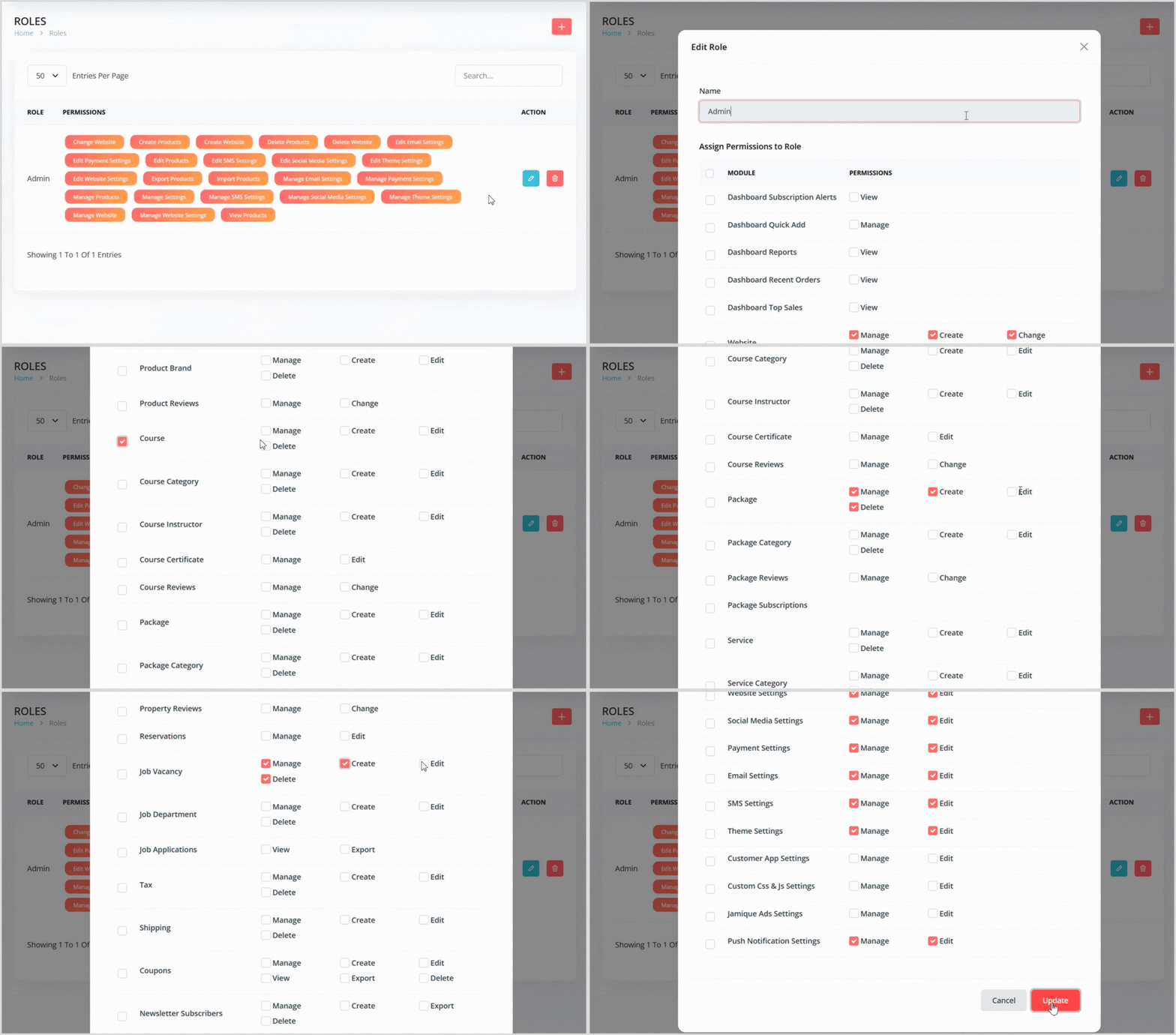
In the roles list, find the role you want to edit.
Click the blue pencil icon button to open a pop-up with the role details pre-populated.
Update the permissions as needed. Note: The role name cannot be edited.
Click the Update button to save your changes.
Deleting a Role
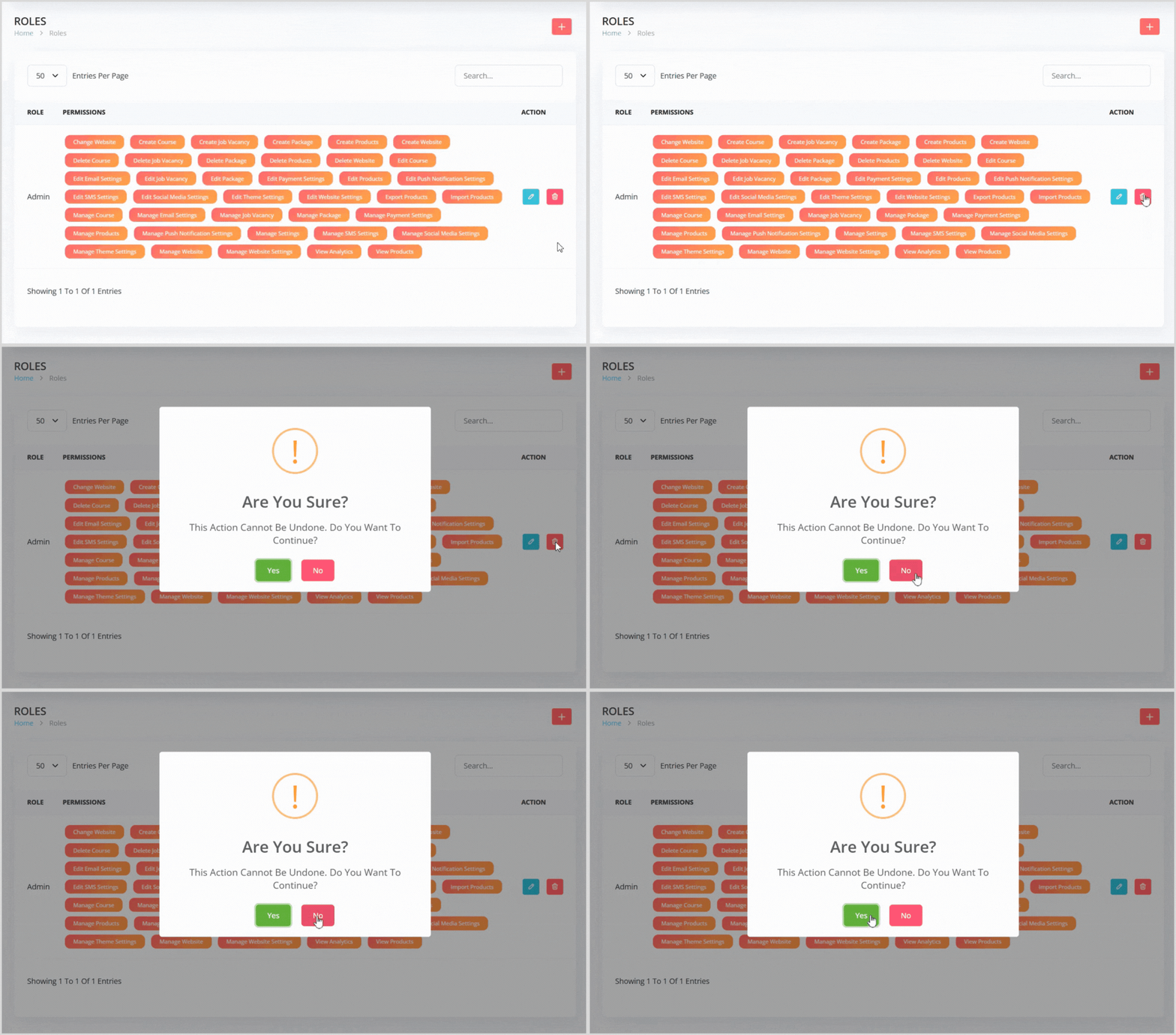
In the roles list, find the role you want to delete.
Click the red trash can icon button to the right of the role.
A confirmation pop-up will appear, warning that the action cannot be undone. Click the green Yes button to confirm deletion.