Update Profile
Keeping your profile up to date in Syteville ensures your account information is accurate and secure. Whether you need to update your details or change your password, the process is simple and accessible from your dashboard. This guide explains how to update your profile using the Profile settings.
Accessing the Profile Settings
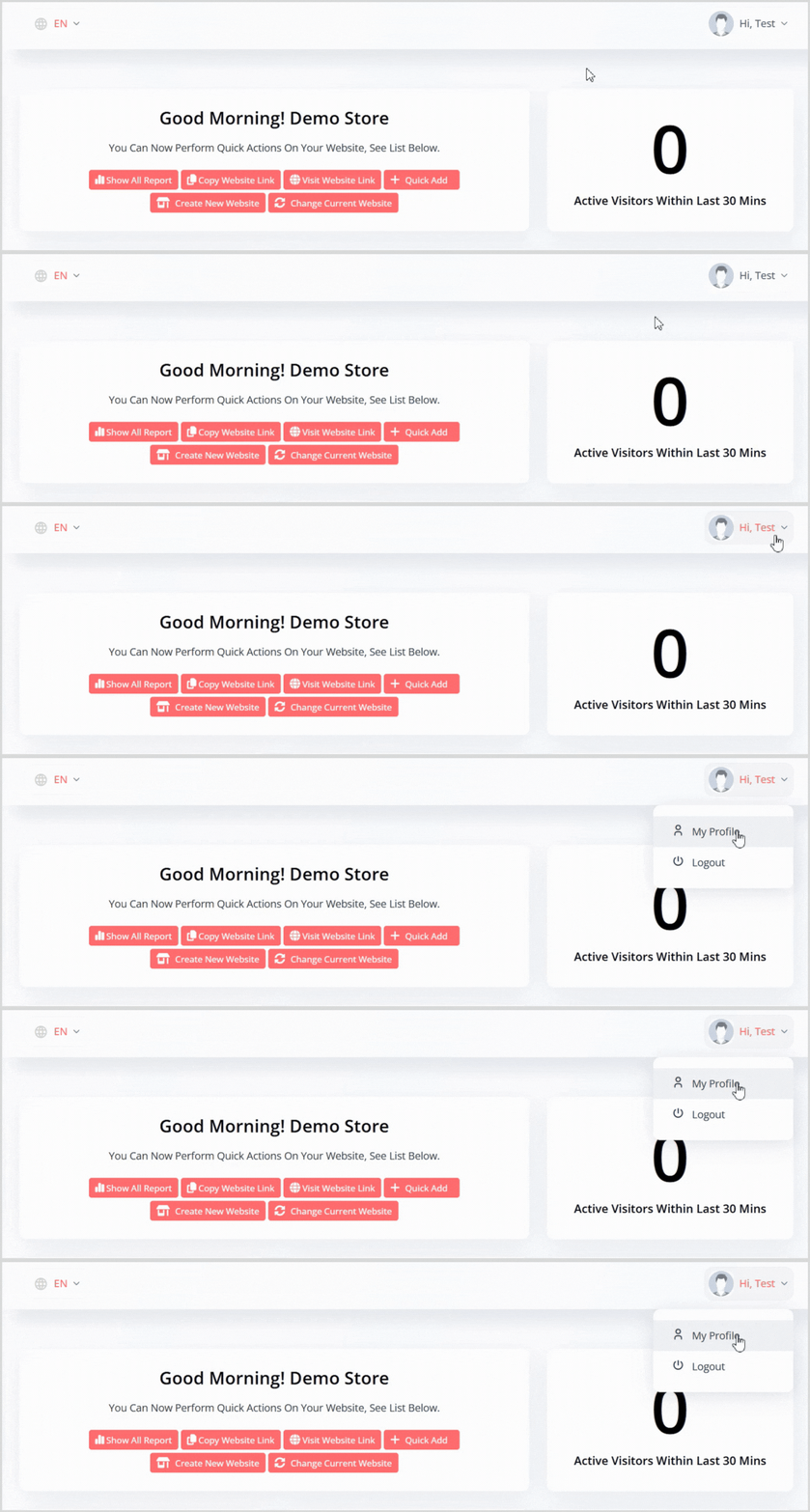
To update your profile, follow these steps:
Log In to Your Dashboard: Visit https://syteville.com and log in to your Syteville account.
Locate Your Avatar: On the dashboard, find your avatar in the Header (top-right corner).
Open Profile Settings: Click on your avatar and select Profile from the dropdown menu. This will take you to the profile update page.
Updating Your Profile
On the profile page, you have two main options to manage your account details

Avatar Image: Upload a new profile picture to your account.
First Name: Edit your first name.
Last Name: Update your last name.
Email: Change the email address associated with your account.
Phone: Update your contact phone number.
After making changes, click the "Save Change" button to apply your updates.

Current Password: Enter your existing password.
New Password: Create a new, secure password.
Re-type New Password: Confirm your new password by entering it again.
Once all fields are filled, click the"Save Change" button to save your new password.
Keep Your Profile Current
Updating your profile ensures your contact details are accurate and your account remains secure. Regularly review your personal info and password to maintain a seamless experience while managing your Syteville website.