Coupon
The Coupon feature in Syteville allows you to create automatic discounts on orders, encouraging customer purchases and boosting sales. Coupon setup is located under the Modules tab in the Left Sidebar. This guide covers how to create, edit, delete, export, and view coupon usage to help you manage discounts effectively.
Navigate to Coupons: In the Left Sidebar, click Modules, then select Coupon to access the coupon setup page.
Creating a Coupon
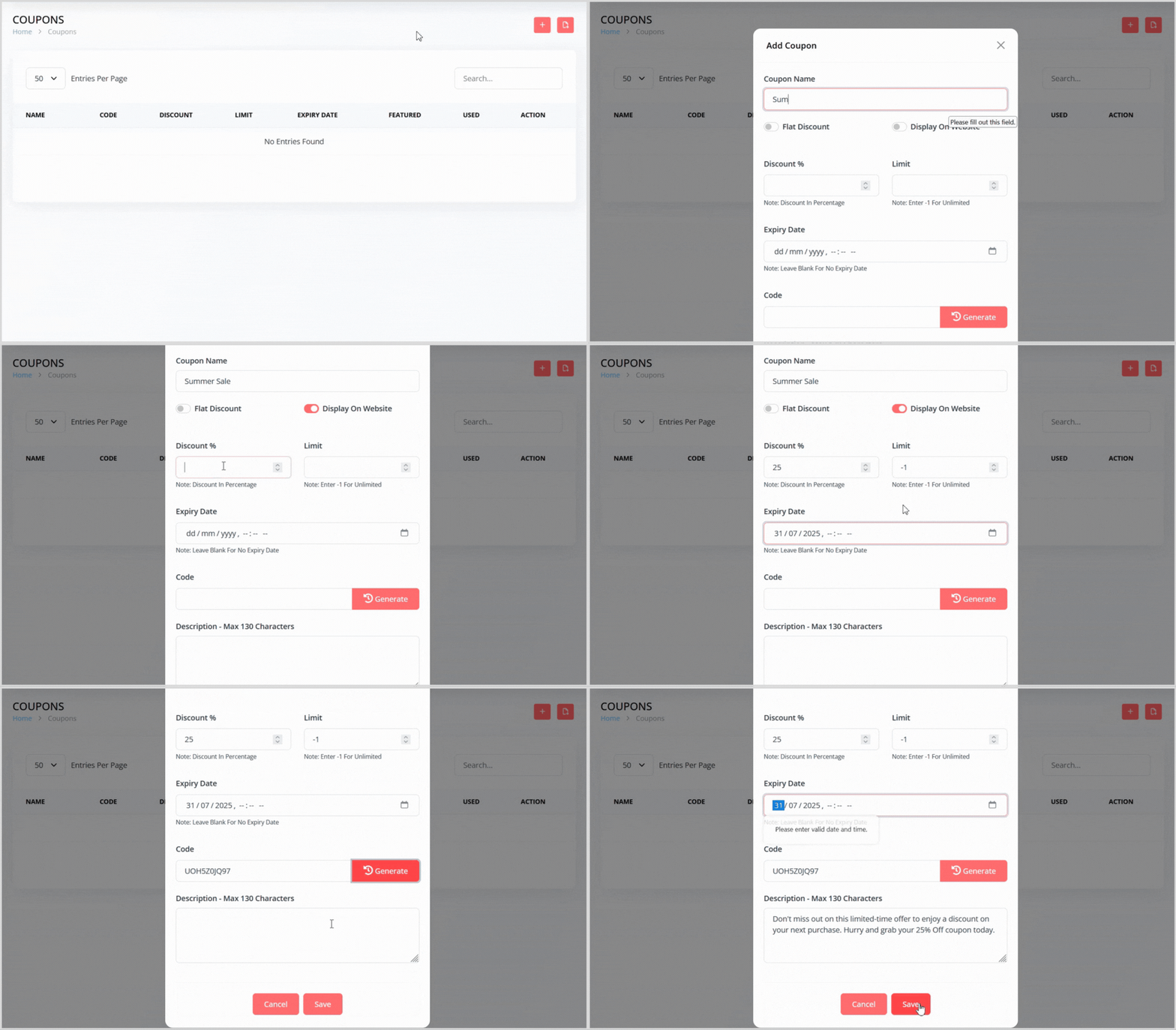
On the Coupon page, click the plus + icon button on the right to open a pop-up for creating a new coupon.
Enter the following details in the pop-up:
Coupon Name: Provide a name for the coupon (e.g., "Summer Sale").
Flat Discount (Toggle): Enable this to switch the discount input field to accept a flat rate instead of a percentage.
Display on Website (Toggle): Enable this to show the coupon and its details on your website’s landing page for customers to view.
Discount %: Enter the discount amount in percentage format (e.g., 25 for 25%) or a flat rate if the Flat Discount toggle is enabled.
Limit: Set the usage limit for the coupon. Enter -1 for unlimited usage or a specific number for limited uses.
Expiry Date: Set an expiration date for the coupon or leave it blank for no expiry.
Code: Enter a unique coupon code or click the Generate button to the right of the input field to have the system create one for you.
Description: Add a brief description of the coupon for reference.
Click the Save button to create the coupon. It will now appear in the coupon list.
Editing a Coupon
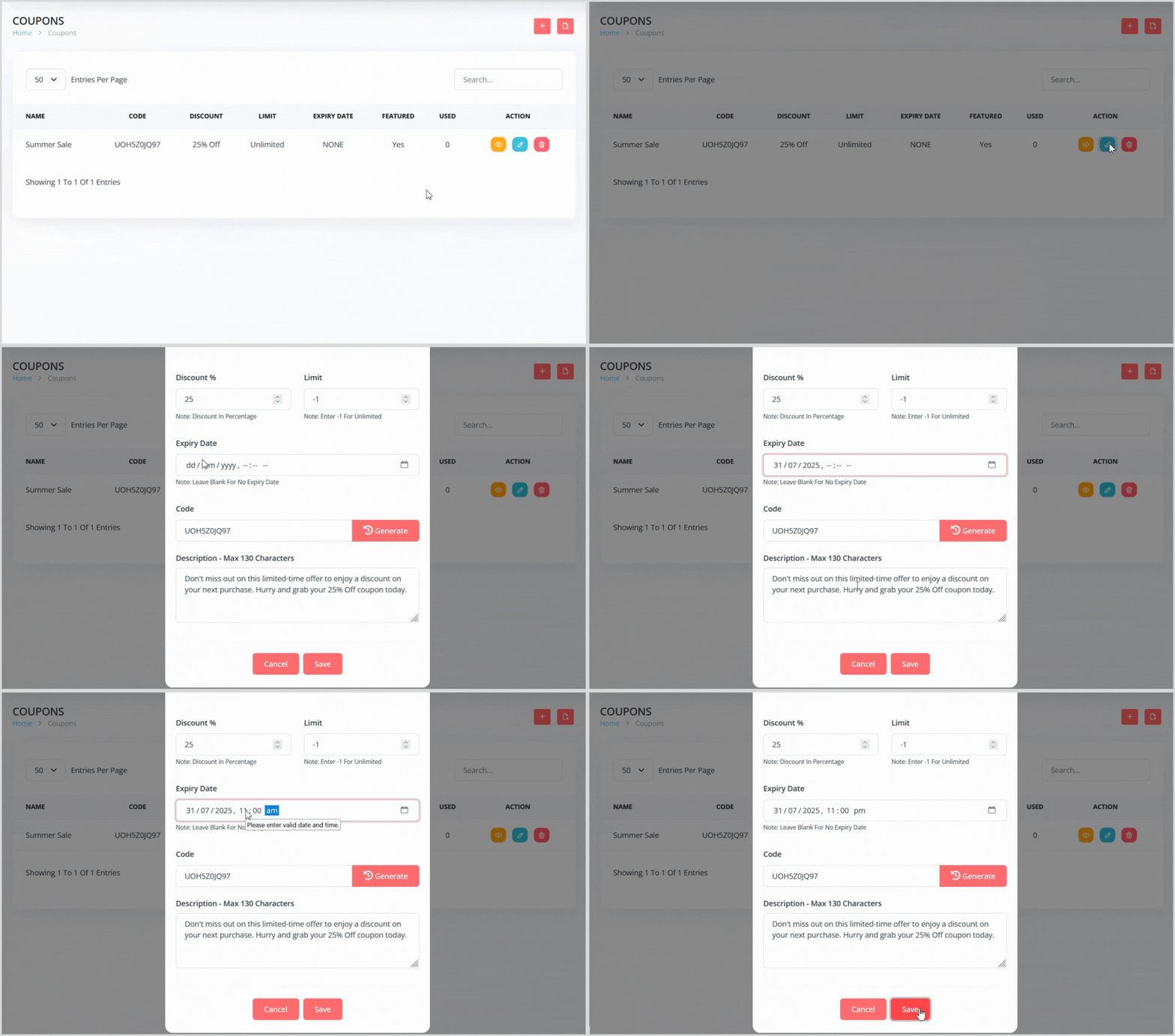
In the coupon list, find the coupon you want to edit.
Click the blue pencil icon button to the right of the coupon to open a pop-up with the coupon details pre-populated.
Update any details, such as Coupon Name, Discount %, Limit, Expiry Date, Code, Description, or toggle settings.
Click the Save button to apply your changes.
Deleting a Coupon
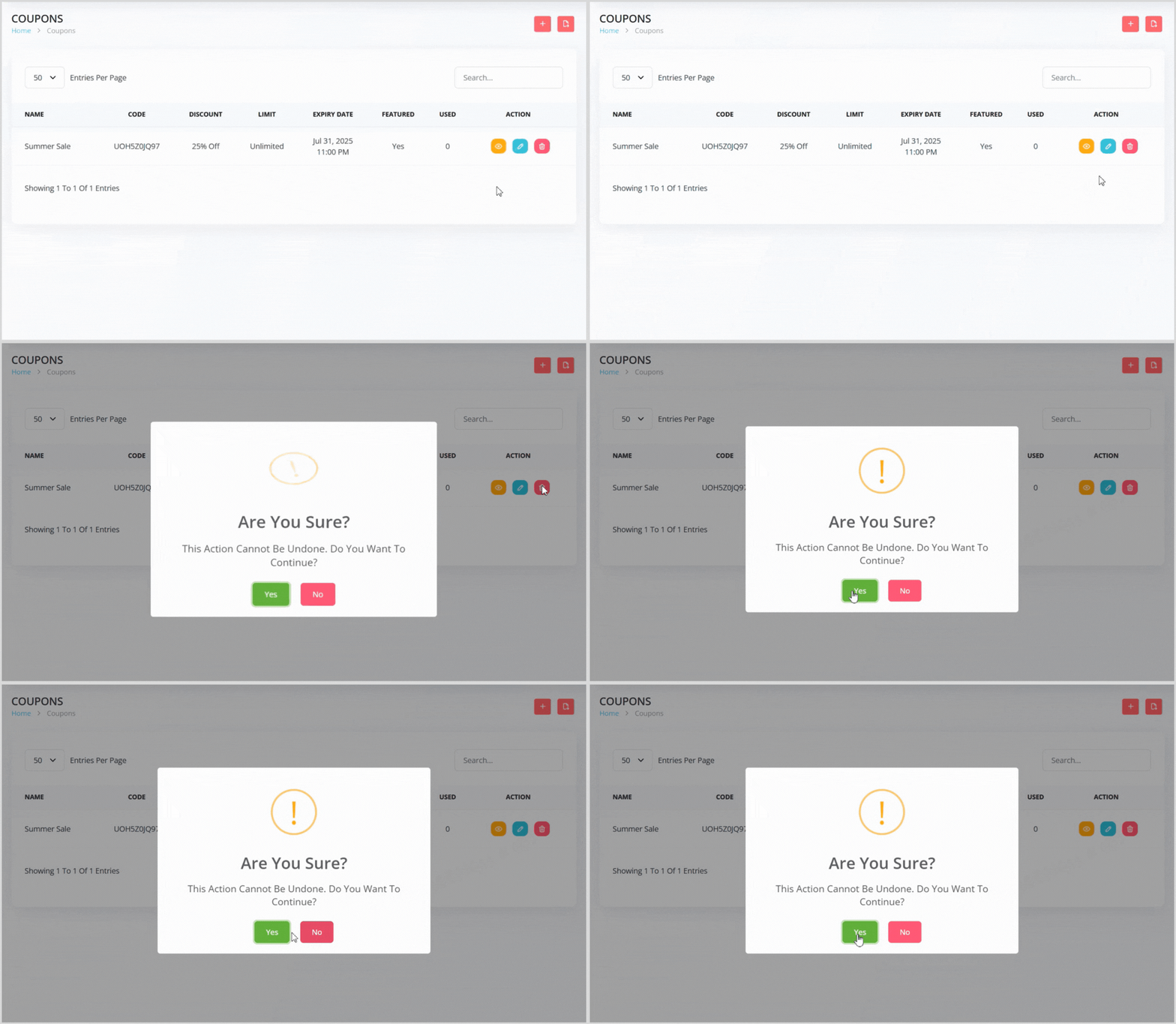
In the coupon list, find the coupon you want to delete.
Click the red trash can icon button to the right of the coupon.
A confirmation pop-up will appear, warning that the action cannot be undone. Click the green Yes button to confirm deletion.
Exporting Coupons

On the Coupon page, locate the file icon button next to the plus icon on the right.
Click the file icon to export all coupons in an XLSX file format for your records or analysis.
Viewing Coupon Usage
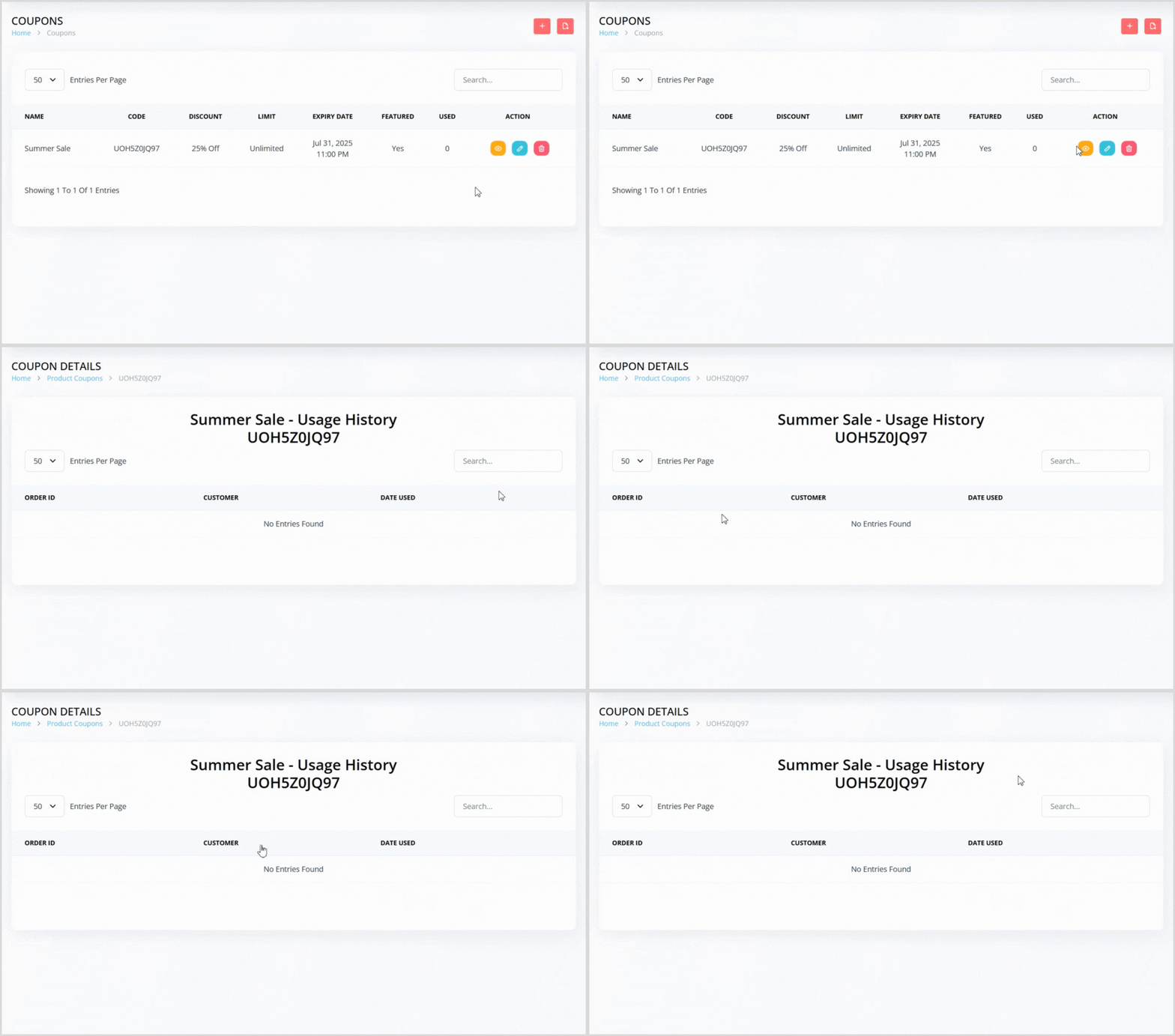
In the coupon list, find the coupon you want to review.
Click the orange eye icon button to the right of the coupon to visit the coupon’s usage history page.
On the usage history page, view details for each use, including:
Order ID: The ID of the order where the coupon was applied.
Customer Name: The name of the customer who used the coupon.
Usage Date: The date the coupon was used.
Coupon With Usage Data

Boost Sales with Coupons
Coupons are a powerful tool to attract customers and drive sales on your Syteville website. By creating, managing, and tracking coupon usage, you can tailor promotions to meet your business goals and enhance the customer experience.