Newsletter Subscribers
The Newsletter Subscribers feature in Syteville allows you to share tips, recommendations, or announcements about products or services with customers who have opted in to receive newsletters. Unlike blogs, newsletters are sent only to subscribers who sign up through your website’s landing page, and you can also manually add subscribers. The Newsletter Subscribers setup is located under the Modules tab in the Left Sidebar. This guide covers how to create, delete, and export newsletter subscribers to help you effectively engage your audience.
Navigate to Newsletter Subscribers: In the Left Sidebar, click Modules, then select Newsletter Subscribers to access the subscriber management page.
Creating a Subscriber (Merchant Side)
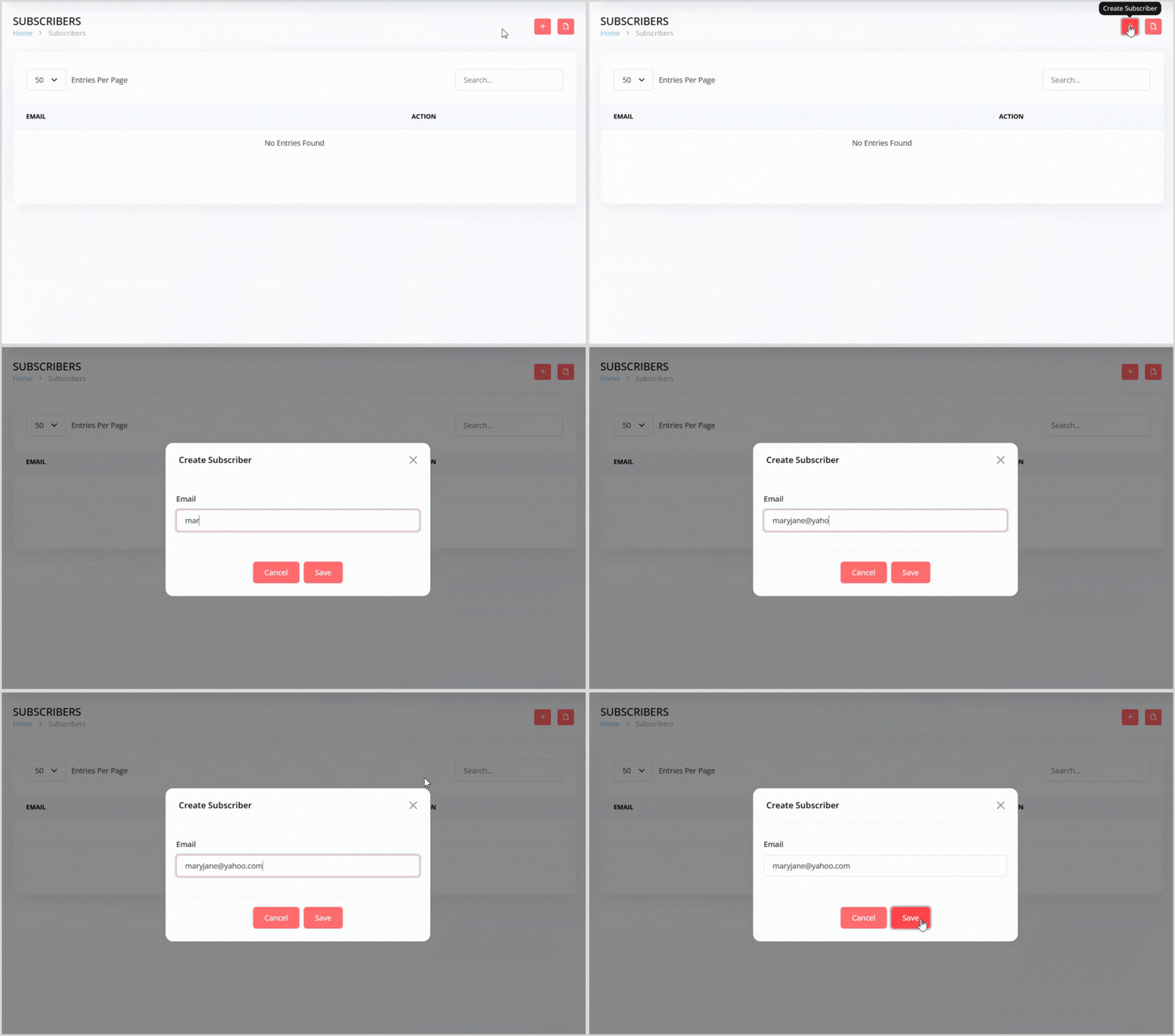
On the Newsletter Subscribers page, click the plus + icon button on the right to open a pop-up for adding a new subscriber.
Enter the subscriber’s email address in the provided field.
Click the Save button to add the subscriber to the list.
Note: Customers can also subscribe directly through a signup form on your website’s landing page, which automatically adds them to the subscriber list.
Deleting a Subscriber
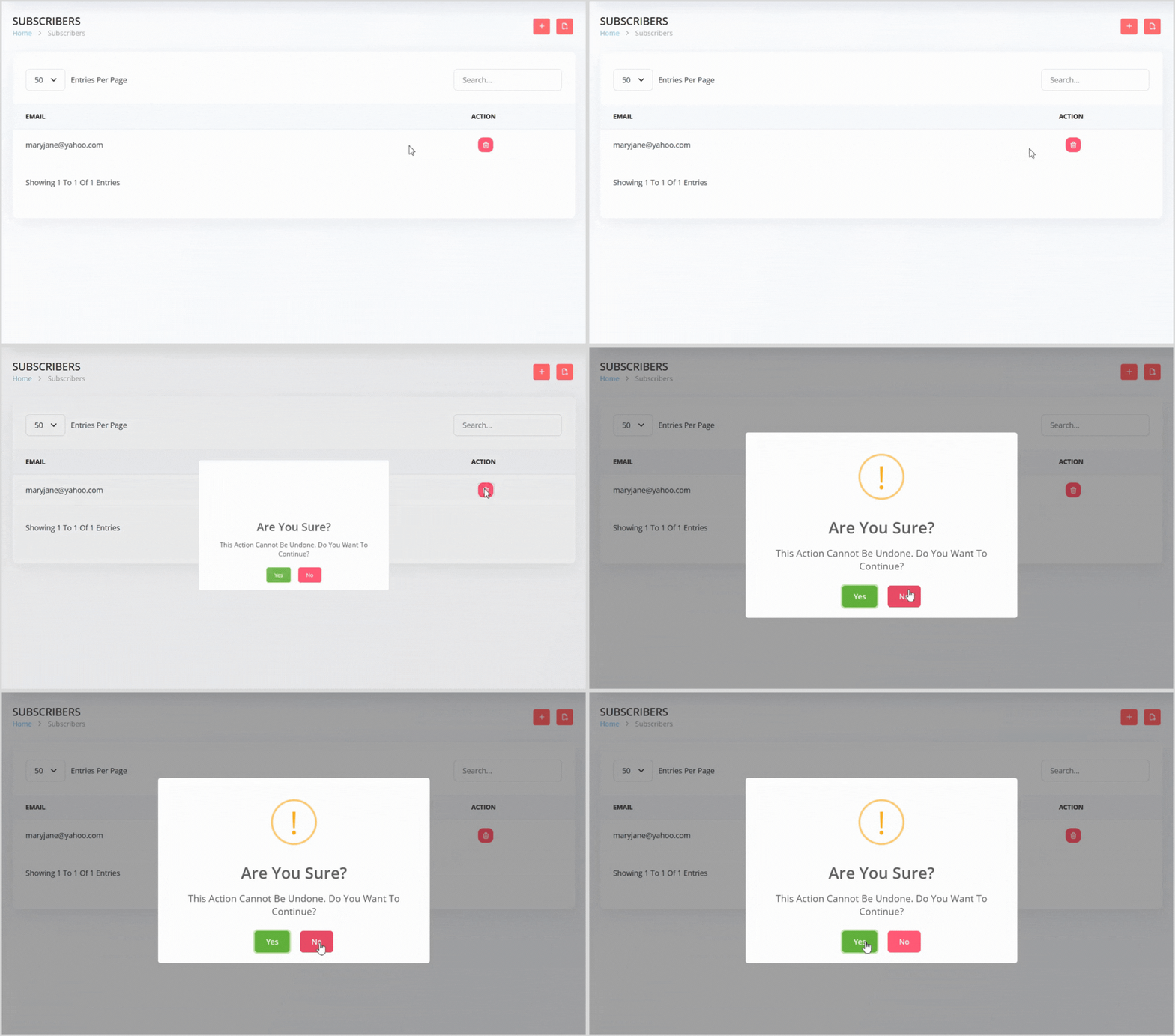
In the subscriber list, find the subscriber you want to delete.
Click the red trash can icon button to the right of the subscriber’s email.
A confirmation pop-up will appear, warning that the action cannot be undone. Click the green Yes button to confirm deletion.
Exporting Subscribers

On the Newsletter Subscribers page, locate the file icon next to the plus icon on the right.
Click the file icon to export the entire subscriber list in an XLSX file format for your records or marketing purposes.
Connect with Your Subscribers
The Newsletter Subscribers feature in Syteville enables you to build a targeted audience for your marketing efforts. By managing your subscriber list and sending tailored newsletters, you can keep your customers informed and engaged with your brand’s latest updates, tips, or promotions.