Tax
The Tax feature in Syteville allows you to configure tax collection based on your specific tax obligations. Taxes are applied on a per-product basis, ensuring that only the appropriate products are taxed. The tax setup process is located under the Modules tab in the Left Sidebar. This guide explains how to create, edit, and delete taxes to streamline your tax collection process.
Navigate to Tax: In the Left Sidebar, click Modules, then select Tax to access the tax setup page.
Creating Taxes
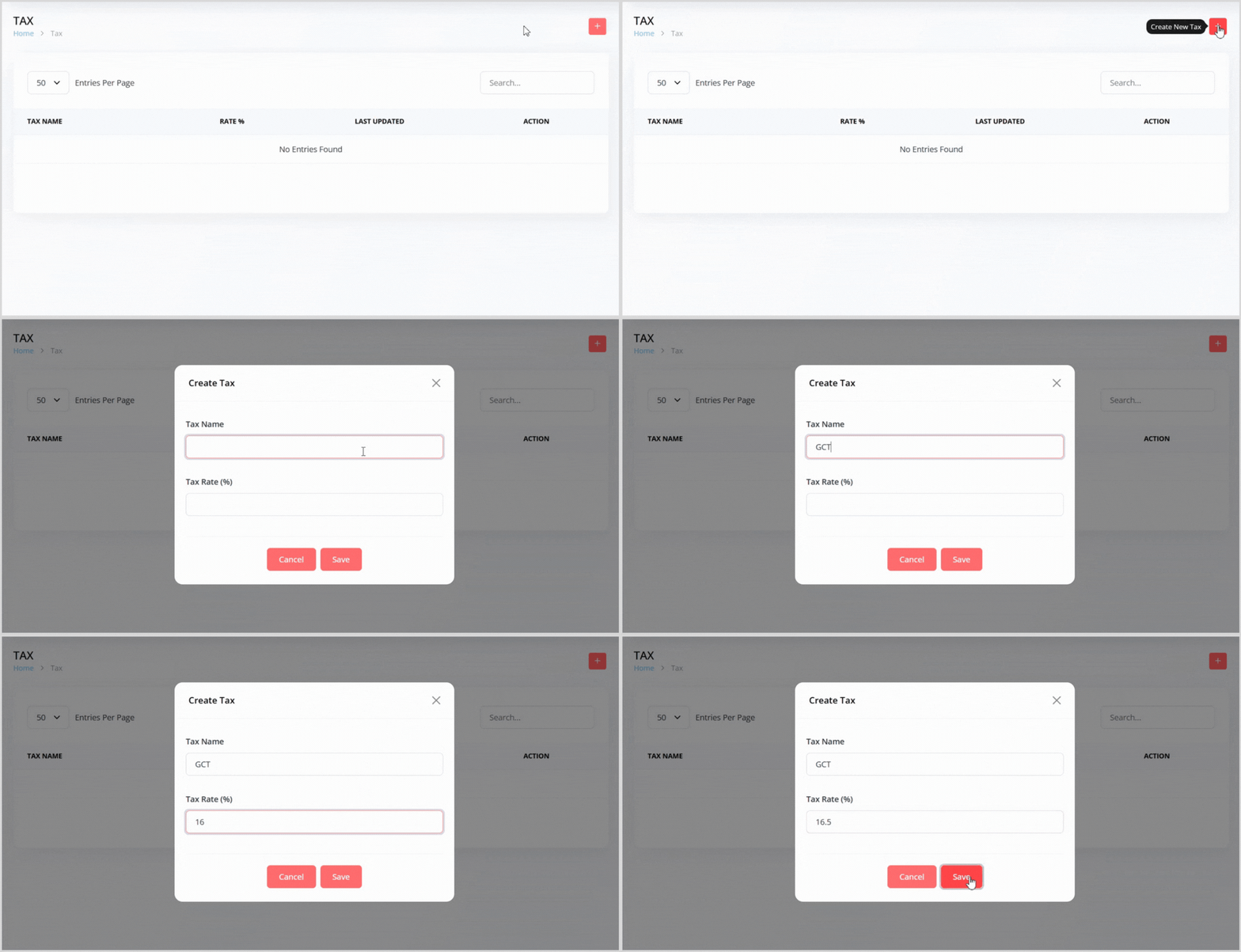
On the Tax page, click the plus + icon button on the right to open a pop-up for creating a new tax.
Enter the following details in the pop-up:
Tax Name: Provide a name for the tax (e.g., "GCT").
Tax Rate: Enter the tax rate in number format as the system will automatically convert it to percentage format (e.g., 16.5 for 16.5%).
Click the Save button to create the tax. It will now appear in the tax list.
Editing Taxes
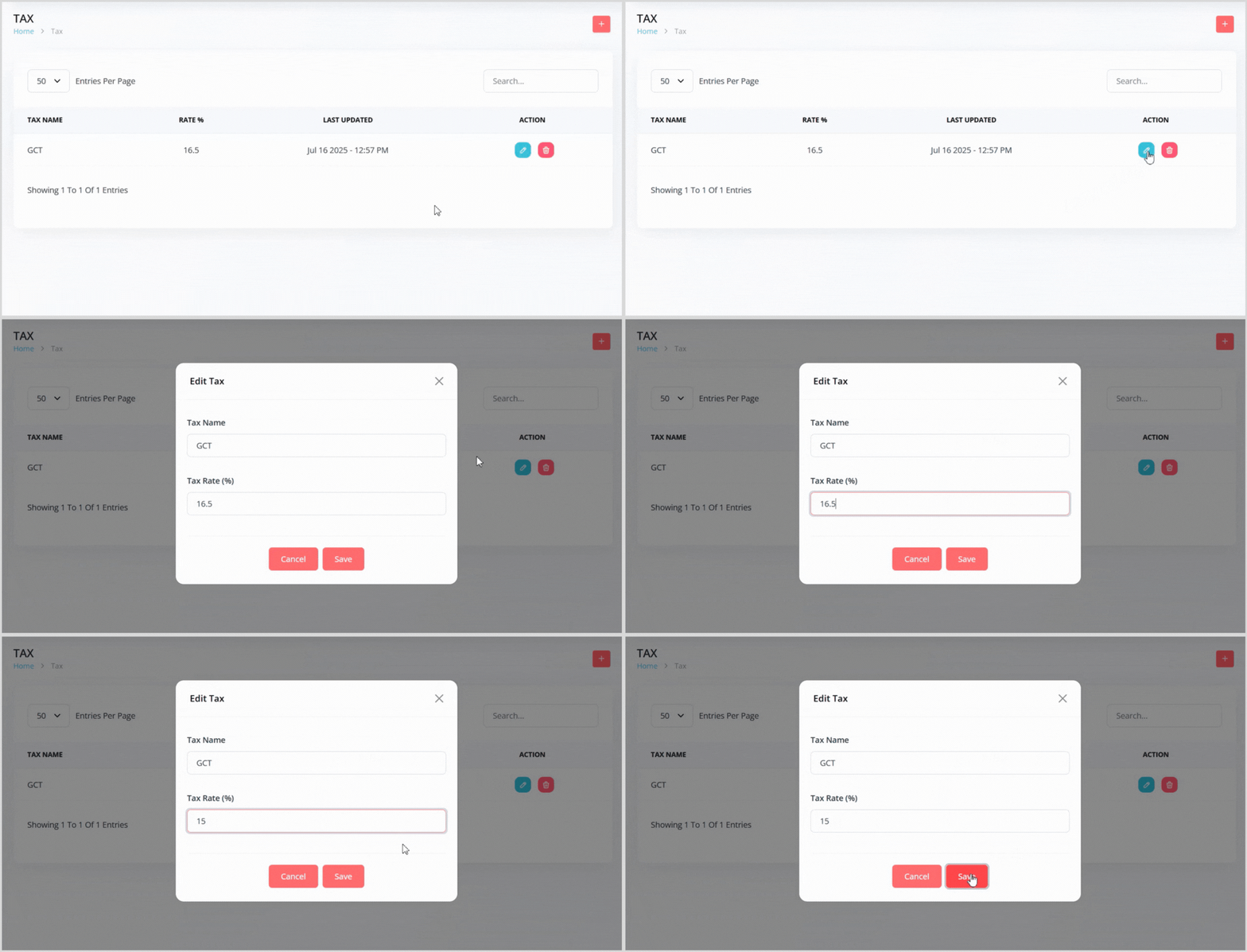
In the tax list, find the tax you want to edit.
Click the blue pencil icon button to the right of the tax to open a pop-up with the tax details pre-populated.
Update the Tax Name or Tax Rate as needed.
- Click the Save button to apply your changes.
Deleting Taxes
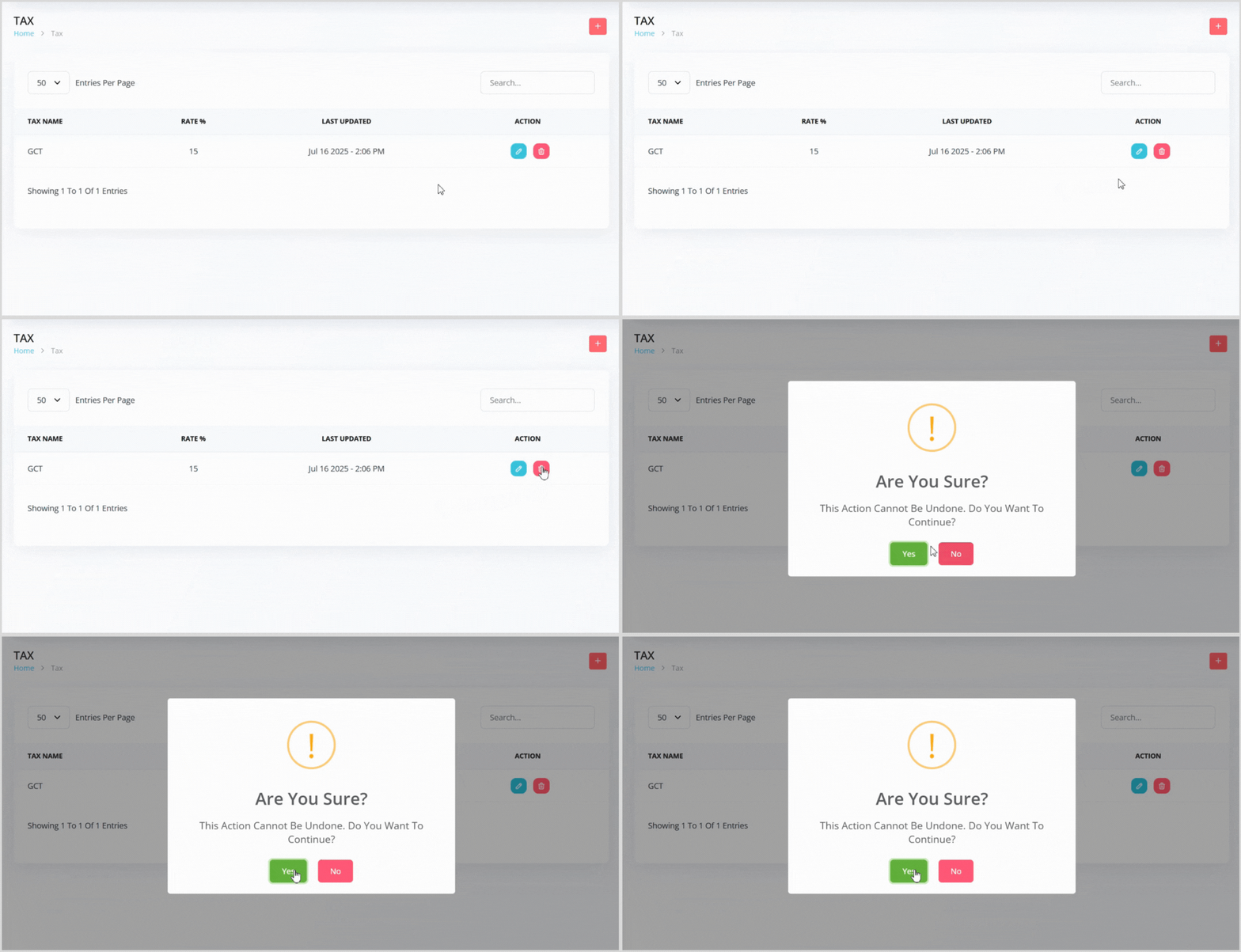
In the tax list, find the tax you want to delete.
Click the red trash can icon button to the right of the tax.
A confirmation pop-up will appear, warning that the action cannot be undone. Click the green Yes button to confirm deletion.
Optimise Your Tax Collection
By setting up taxes on a per-product basis, Syteville ensures accurate tax collection tailored to your business needs. Properly configuring taxes helps you stay compliant with your tax obligations while providing clarity for your customers.